
How I Built My Website: A Practical Guide (Part 3)
The hands-on breakdown. From VS Code and GitHub to Vercel hosting, here is exactly how I built my digital studio as an independent artist.
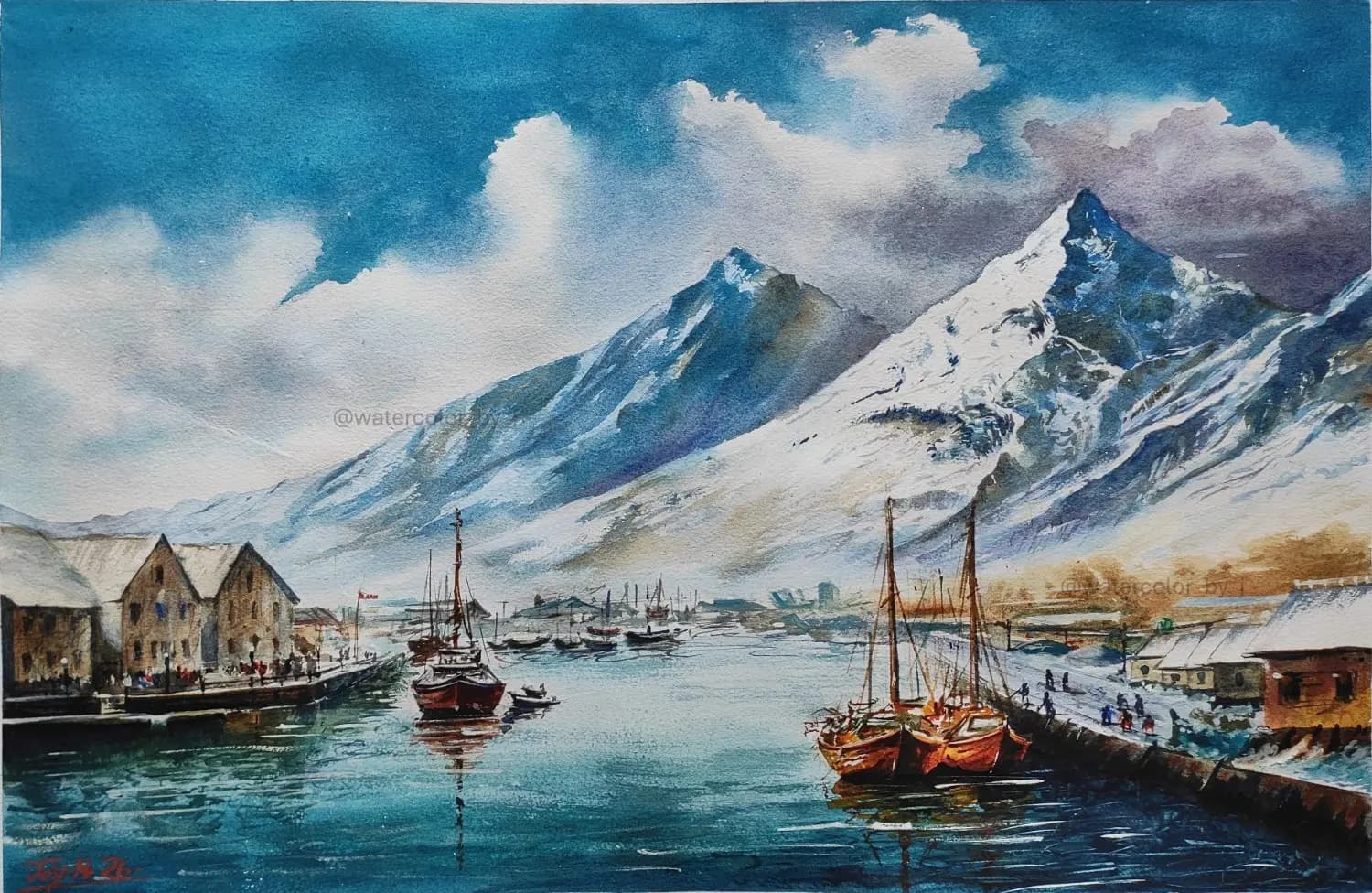
Back in Part 1, I talked about why I wanted my own website in the first place. Part 2? That was all about the pages every artist site needs. But this section is where things get practical.
I want this to be a real, hands-on guide for artists who want to build their own site from scratch - even if you’re not planning to sell anything yet. It’s totally possible to whip up something that looks polished, runs smoothly, and actually feels like you.
1. The Easiest Option (And Why I Skipped It)
If you just want to get your art online fast and let people buy stuff, those website builders like Hostinger and similar services are super tempting. I mean, they hand you ready-made templates, hosting, basic online shop tools, checkout setup - the works. Honestly, you could be up and running in a day.
But I didn’t go that way. I wanted real freedom. Like, total control over every piece:
- Design exactly how I want it
- Custom gallery layouts
- My own blog system
- Better SEO options
- Room to expand later, no weird limits
So, yeah - I decided to build it all myself.
2. What You Actually Need to Start (Seriously)
You don’t need a ton of stuff. Here’s what I used:
- A laptop
- VS Code (totally free, where you write/edit your code)
- Node.js (also free, lets you run your site locally before anyone else sees it)
- A domain name (I grabbed mine from Hostinger for about $20/year)
- A Vercel account (free - this is where your site actually “lives” online)
That’s it.
3. Where the Website Gets Made
I do all my work in Visual Studio Code. It’s kind of like your art studio, but for websites. You’ll build out your pages, your gallery, your blog - pretty much everything right here. If you ever want to add features like user accounts later, you’ll do that here, too.
4. Getting Started (First Commands You’ll Use)
To kick things off with a Next.js website, just run:
npx create-next-app@latest <your_project_name>
Then move into your new folder:
cd <your_project_name>
Start the local server:
npm run dev
Now, point your browser at http://localhost:3000. Boom. Your new website is up and running - at least on your own computer.
5. GitHub Basics (And How to Push Your Project)
Before Vercel can put your site on the web, your code needs to be stored somewhere online. Enter GitHub.
Think of GitHub as:
- Cloud storage for your code
- A history log of every change
- The place Vercel watches for updates
Once you connect your site’s code to GitHub, Vercel will auto-deploy it every time you make changes.
Step 1: Make a GitHub Repo
Go to GitHub, hit “New Repository,” and pick a name (like <your_project_name>). Skip the README and .gitignore for now - Next.js handles that.
Step 2: Initialize Git in Your Project
In your project folder, open the terminal and type:
git init
Step 3: Add Everything
git add .
Step 4: Commit Your Work
git commit -m "Initial commit"
Step 5: Link Your Project to GitHub
Copy your repo’s URL, then run:
git remote add origin https://github.com/YOUR_USERNAME/<your_project_name>.git
(Replace with your actual link.)
Step 6: Push to GitHub
git branch -M main
git push -u origin main
Congrats, your code’s online now.
What Happens Next (Here’s the Cool Part)
Once Vercel’s hooked up to your GitHub repo, just deploy once. After that, every time you:
git add .git commit -m "Updated gallery"git push
Vercel redeploys your website automatically. No stress, no manual uploads. It just works.
[!TIP] Big Beginner Tip (Trust Me, This Matters) Before you push anything to GitHub, double-check your
.gitignorefile includes.env. If you push.envby mistake, you might leak sensitive stuff - like database URLs or secret API keys. Seriously, don’t skip this.
6. Hosting on Vercel (Super Simple Version)
Here’s how to go live:
- Make a Vercel account
- Push your code to GitHub
- In Vercel, click “New Project”
- Import your GitHub repo
- Click “Deploy”
Done. Vercel does all the heavy lifting - no server setup or tech headaches.
7. The Best Beginner Route (No Database Needed)
If you just want a gallery, blog posts, artwork pages, and a contact page, you really don’t need a database. This is honestly the easiest way to start:
Build your homepage, gallery, individual artwork pages, blog, about, and contact - all with just code. No complicated backend, no user login, no database setup. It’s simple, but still looks and feels professional.
And that’s it. You’re ready to show your art to the world, on your terms.
8. When You Actually Need a Database
If you want users to sign up, log in, see a dashboard, save their cart, or check out their order history - yeah, you’re going to need a database.
The simplest way on Vercel? Just use Vercel Storage with Postgres. You can spin one up right from the Vercel dashboard. Super easy.
What’s a database, in plain English?
Picture a database like an old-school filing cabinet. Your website is what people see - the front-end. The database is where you stash things: user accounts, info about artwork, orders if you’re selling stuff. The backend is the bridge between the two.
I hooked things up using Prisma ORM, which makes the connection between your code and the database much smoother.
Prisma basics, no fluff
Once you get Prisma set up, the steps are pretty much always the same:
- Define your models. You do this in
prisma/schema.prisma. - Generate your Prisma Client:
npx prisma generate - Push your schema to the database:
npx prisma db push
Done. Your tables are now in the database.
9. Where to Put Environment Variables
When you set up Vercel Postgres, Vercel gives you environment variables like DATABASE_URL. Store them in the right spot.
- On your computer: put them in your
.envfile. - On Vercel: go to your project, open Settings, then add them under Environment Variables.
10. How Signup and Login Actually Work
In Next.js, just make pages like /signup and /login.
- Signup saves new users to the database.
- Login checks their info.
- Once logged in, session data keeps them signed in.
Even if you’re not running a shop, having login works for things like collector accounts, newsletter signups, saving favorites, or giving early access.
12. The “Cheat Code” If You Hate Coding
If you don’t love writing code, use an AI assistant like Claude or ChatGPT. Ask it for help:
- “Make a blog page layout in Next.js”
- “Design an artwork details page”
- “Build a gallery filter”
- “Fix this error”
- “Improve my SEO metadata”
It’s a lifesaver for beginners. You won’t get stuck for days on one bug, you keep moving, and you pick up new skills as you go.
13. The Best Beginner Roadmap
If you’re just getting started, don’t try to build everything at once. Start with:
- Home page
- Gallery
- Artwork pages
- Blog
- About + Contact
Later, if you want:
- Login/signup
- Dashboard
- Database
This way, you won’t burn out - and you’ll actually enjoy building your site.
14. Final Note
Here’s the biggest thing I learned: You don’t really need a website. You need a website that feels like your studio - a calm, lasting home for your work.
[!CAUTION] Don't skip this (serious security tip) Before you do anything else: add
.envto your.gitignorefile. Your.envholds things like database URLs, secret keys, API keys, login/session secrets. If you accidentally upload it to GitHub, you’re basically posting your private keys for anyone to grab.
So double-check your .gitignore has:
.env
.env.local
It’s one of the easiest mistakes to make - and it can cause real problems later.
FAQ
1) Do I need to be a programmer to build an art website?
Nope. What you really need is patience, and the willingness to learn at your own pace. Most of what you’ll build is just pages with images, text, and layout. It always looks scarier before you jump in.
2) How much does it cost to run an art website?
If you follow my setup, it’s almost free. You’ll probably only pay for a domain name (usually about $20 a year on Hostinger). Hosting on Vercel is free for personal stuff.
3) Do I need a database for my project?
Not at first. If your website is just a gallery, blog, or contact page, you don’t need a database. You only need one when you add things like user accounts, order management, inventory tracking, or an admin dashboard.
4) What if I only want a portfolio, not a full shop?
Honestly, that’s the best way to start. A personal gallery and blog are already powerful: they build your identity, help with Google search, and give collectors a place to find you. You can always add e-commerce later.
5) How long does it take to build something like this?
If you’re just starting out, plan for 1–3 days for a basic portfolio, or 1–2 weeks for a polished gallery and blog. It takes longer if you add login, admin panels, and databases. Don’t rush.
6) Where do I actually write the website?
Use VS Code. Think of it like your digital sketchbook - but for building websites instead of making art.
7) What’s the easiest way to publish the website?
Vercel makes it simple. Connect your GitHub, and every time you push code, your site updates automatically. No need to mess with file uploads. The first time you see your site go live, it’s honestly a wild feeling.
8) Will Google find my website automatically?
Yeah, but it won’t happen right away. Google usually finds websites through links on other sites, people searching for your name, or when you submit your sitemap.
9) What if I get stuck while coding?
You will. Seriously, everyone hits a wall at some point. Honestly, the best beginner move is to use tools like Claude or ChatGPT. Ask them to break down errors, whip up some starter code, or handle the tedious stuff so you don’t lose motivation.
10) Is a website really better than Instagram?
Absolutely. Instagram’s great for getting noticed. But your website? That’s your space. Social platforms love to shuffle algorithms, limit your reach, or sometimes just vanish. Your website sticks around, no matter what.
Explore My Work
- 👉 View the Gallery: /gallery
- 👉 Read Part 1: Why I Built This Website
- 👉 Read Part 2: What I Actually Built
— Joy
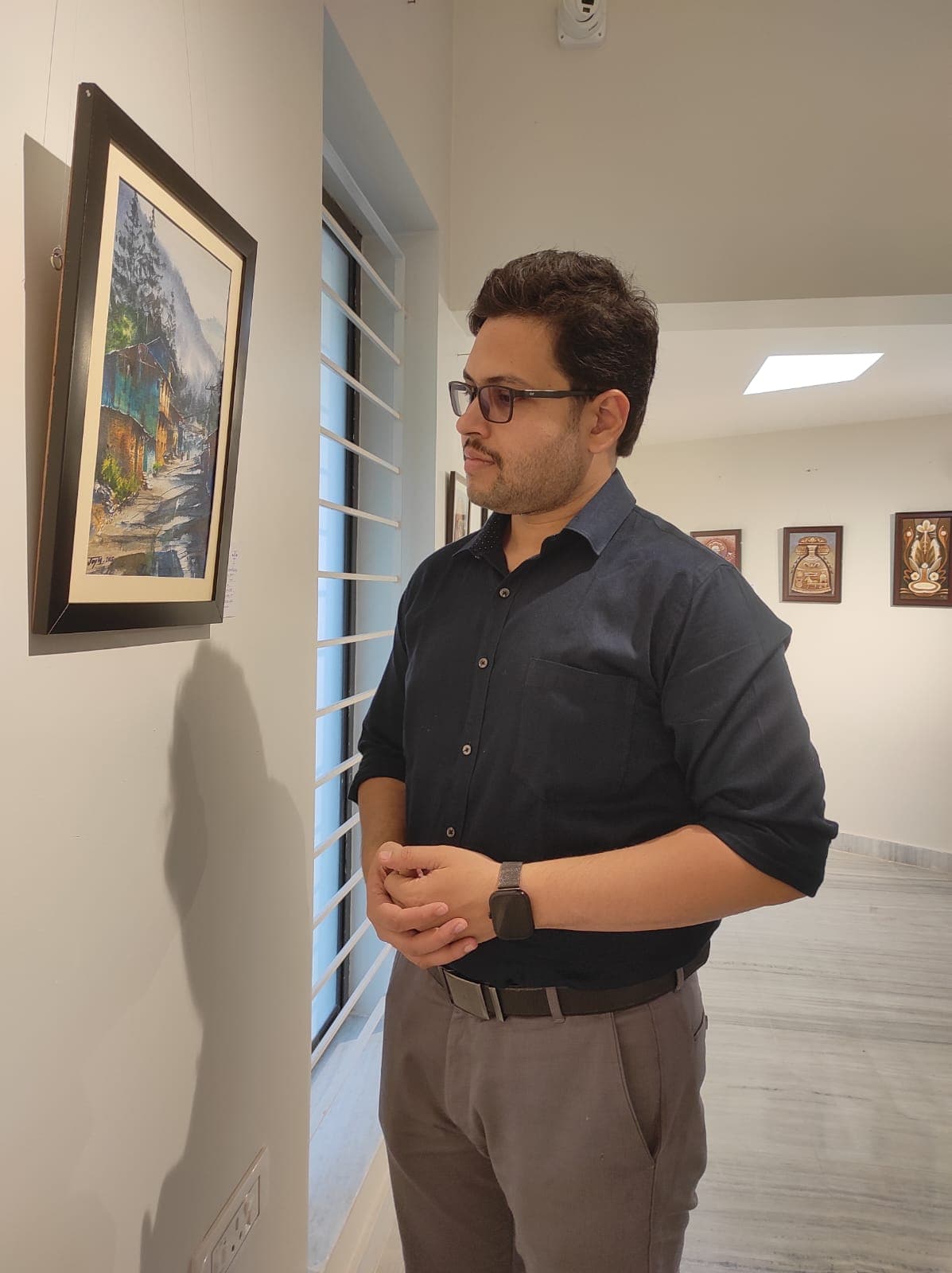
Joy
"I paint not to capture the world as it is, but as it feels."
More from the Journal
How I Built My Art Website: What I Actually Built (Part 2)
A deep dive into the structure of a high-performance artist website. Learn why one painting per page, a clean gallery, and a focused homepage matter.
Read ArticleI Made My Art Website: Why I Didn’t Wait for a Gallery (Part 1)
The truth about being an independent artist today. Why I stopped waiting for galleries and decided to build my own permanent home for my work.
Read ArticleWhy Collectors Should Buy from Small Artist Websites (And Not Just Marketplaces)
Why the most meaningful art isn’t found on big marketplaces. Learn the benefits of buying directly from independent artist websites.
Read Article